Routing

What is Routing

A web application is composed of multiple pages where one page is linked to another page.
That is, from one page you can navigate to other pages by clicking a link.
In older applications, there were anchor tags(<a href="url"></a>) to move from one page to another.
When the link was clicked, whole page was reloaded and the requested page was then rendered.

React applications are Single Page Applications(SPAs) where whole page is not refreshed rather only the requested content or it is better to say the requested component is rendered in its respective location.

A new component is loaded when the URL is changed or a link is clicked(which may also cause the URL to change) but whole application is not reloaded.
This changing or moving from one component to another is called routing.
Example, at the top of Facebook home page, we have links for Home, Find Friends, and Profile.
When any of these links is clicked, a new content is loaded and the browser URL also changes but the entire page is not refreshed.
On the click of a link, the corresponding component is loaded inside the display area. This is achieved using routing.

How to perform routing

In react, routing is performed by a special package called react-router-dom.
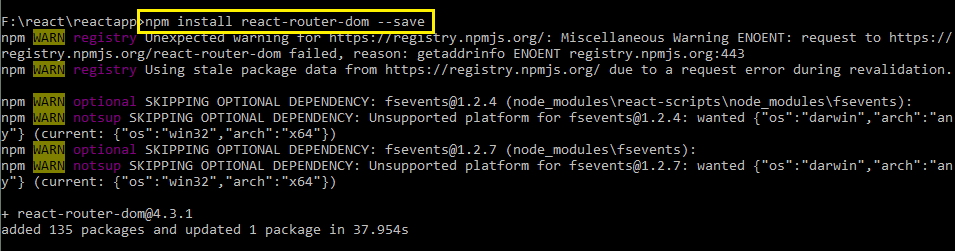
Before using react’s routing capabilities, we need to set it up in our application using npm install --save command.
--save flag instructs npm to save the dependency for this module inside the application’s package.json file.
react router dom installation

Once the package is installed, we need to use its BrowserRouter and Route objects to perform routing where:
A. BrowserRouter
It keeps a log of the history of URL changes and decides action to be taken when the URL changes.
It interacts with HTML5 history api.
B. Router
This object is responsible to rendering a component corresponding to the requested URL.
It knows which component to render for what URL.

Let us learn about routing with a sample application having three different pages or three components.
There is a home page, a page which has HTML content and a page for CSS content.
URLs for each of these will be

Home => localhost:3000
HTML => localhost:3000/html
CSS => localhost:3000/css

Next step is to create components for all three above.
HomeComponent

import React, { Component } from 'react';

class Home extends Component {
    render() {
        return (
            <div>Home</div>
        );
    }
}
export default Home;

HTMLComponent

import React, {Component} from 'react';

export class HTML extends Component {
    render (){
        return (<div>This is an HTML component</div>);

    }
}
export default HTML;

CSSComponent

import React, {Component} from 'react';

export class CSS extends Component {
    render (){
        return (<div>This is a CSS component</div>);

    }
}
export default CSS;

Setting Routes

Now we need to set up routes.
Routes can be considered as the mapping between URL and the component that will be displayed for that URL.
A route is created using Route object from react-router-dom package.
It has a path attribute that takes the URL for which this route should be matched and a component attribute that takes the component which will be rendered for this route.
The URL value should be relative. Thus, routes for the above components for URLs defined earlier will be created below.

These routes are wrapped inside BrowserRouter object which takes care of calling the appropriate Router object as the URL changes.
Thus, both the objects created for three different URLs and components are created as below.

<BrowserRouter>
   <div>
      { /* Route for home component */}
      <Route exact path="/" component={Home}></Route> 
      { /* Route for html component */}
      <Route path="/html" component={HTML}></Route>
      { /* Route for css component */}
      <Route path="/css" component={CSS}></Route>
   </div>
</BrowserRouter>

Note that Router objects inside BrowserRouter object are surrounded by a div.
This is because react expects a single element to be returned from the BrowserRouter.
If there is only on route, then this div is not required.

Routing setup in react should also be a component.
Thus, besides the above 3 components, we also need to create a component which includes the BrowserRouter and Router objects defined above.
This component will be then attached to the DOM and it will take care of rendering all the other three components.
Modified index.js is given below.

import React from 'react';
import ReactDOM from 'react-dom';
import { BrowserRouter, Route, Link } from 'react-router-dom';
import Home from './components/home';
import HTML from './components/html';
import CSS from './components/css';

// create router component
function Router() {
    return (
    <BrowserRouter>
        <div>
            { /* Route for home component */}
            <Route exact path="/" component={Home}></Route> 
            { /* Route for html component */}
            <Route path="/html" component={HTML}></Route>
            { /* Route for css component */}
            <Route path="/css" component={CSS}></Route>
        </div>
    </BrowserRouter>);
}
// attach router component to DOM
ReactDOM.render(<Router />, document.getElementById('root'));

You can also write BrowserRouter object directly as the first argument to ReactDOM.render() method.

Now open the browser and open URLs as defined earlier and see how each component is rendered for corresponding URL.
Notice the exact attribute given in the Router for home component.
In the absence of this attribute home component will be rendered for all the URLs because its path(“/”) will be matched for all the URLs(“/html” and “/home”).
To ensure that it is rendered only when complete path matches, exact is applied to the Route.

Using Links

Till now we changed components(or views) by changing URL in the browser but this is not is done in actual applications.
There we have links for each view. In normal applications, we used the anchor tag but in react applications, this is not the correct way as explained at the start of this section.
In react, we use a Link object from react-router-dom package. It has an attribute named to which takes a URL as its value.
This URL should match the one given in the Router objects. Clicking the Link causes the component of the Router whose path matches the URL of Link to be loaded.
A Link can be compared to the anchor tag as clicking it changes the view but without the entire application being reloaded.
Thus, the modified Router component with links to each component is given below.

function Router() {
    return (<BrowserRouter>
        <div>
            <div>
                { /*Create links*/ }
                <Link to="/">Home</Link><br/>
                <Link to="/html">HTML</Link><br/>
                <Link to="/css">CSS</Link><br/>
            </div>
            <hr/>
            { /* Route for home component */}
            <Route exact path="/" component={Home}></Route> 
            { /* Route for html component */}
            <Route path="/html" component={HTML}></Route>
            { /* Route for css component */}
            <Route path="/css" component={CSS}></Route>
        </div>
    </BrowserRouter>);
}

Notice the to attribute of Link objects and the path attribute of Route objects exactly match.

Angular Routing Tutorial with examples

What is angular routing
A web application generally contains several pages.
Example, a student management system can have a page for student registration, another page for student data modification, a page for viewing a list of all students etc.
Also, each page of the application might have links that point to some other page. Example, student registration page can have a link to another page that displays a list of all students.
When any student name is clicked on the list page, it might open up a new page with the details of that student and so on.

Thus, moving from one page to another is a necessary part of any application. It is also called navigation among pages.
In an angular application, this is achieved by Routing.
For understanding the process of routing, it is necessary to know what is a route, which is covered next.

Route

Route is a URL that points to a specific page of an application. Route will always be a string.

Suppose the root url of a web application is http://localhost/approot
Now, a page for adding user resides at URL http://localhost/approot/adduser
Page for deleting user resides at URL http://localhost/approot/deleteuser
URL for the page showing a list of users is http://localhost/approot/users
URL for the page showing the detail of a specific user is http://localhost/approot/users/user

Routes for all the above URLs are shown below

URLRouteExplanation
http://localhost/approotRoute to the root url is an empty string
http://localhost/approot/adduser‘adduser’Route to a page relative to root URL
http://localhost/approot/deleteuser‘deleteuser’Route to a page relative to root URL
http://localhost/approot/users‘users’Route to a page relative to root URL
http://localhost/approot/users/user‘users/user’Route to a page relative to ‘users’ route

If a page is relative to the application root URL, then its route may begin with a slash(/) but if a page is inside some other component(such as users/user), then it should not be preceded be a slash(/).
This is because a route is always relative to a component.

Angular routing navigation steps

Routing requires following steps to be performed. These may seem to be confusing at first but when read with the examples which follow, will surely clarify things.

  1. Creating routes:
    Defining the page which should be loaded for a specific route. Example, for ‘adduser’ route, the page for adding users should be displayed. In general, a route will always points to a component or a module.
  2. Registering routes:
    Letting angular know about the routes created in above step so that it can load component when it encounters URL matching a route.
  3. Adding router outlet:
    First step tells angular to load a component for a particular route or more specifically the HTML template for a component for a route.
    But it does not tell where to load that HTML template. This is done by router outlet directive and is represented by a <router-outlet> tag.
    The place where angular encounters this tag, it searches for a matching route and loads the HTML of the component which is configured for that route.
  4. Adding links:
    This step will only be required when you have a link on a page which points to another page(or route).

Angular routing example

Suppose there is a page having 3 tabs Java, Angular and Python.
On the click of each tab, we want to show items specific to the link clicked in the box below the tabs.
Without routing in place, the contents of app.component.html(also called root component) are as below:

<!-- css for the page -->
<style>
   .list{
      padding: 10px;
      display: flex;
      width: 25%;
      background-color: #ccc;
      font-weight: bold;
   }
   span:nth-child(1) {
      width: 33%;
      padding: 10px;
      cursor: pointer;
   }
   span:nth-child(2) {
      width: 33%;
      padding: 10px;
      cursor: pointer;
   }
   span:nth-child(3) {
      width: 33%;
      padding: 10px;
      cursor: pointer;
   }

   .content{
      background: #ccc;
      width: 26%;
      height: 100px;
      margin-top: 10px;
    }
   a {
      text-decoration: none;
    }
</style>
<div class="container">
   <div class="list">
      <span>JAVA</span>
      <span>ANGULAR</span>
      <span>PYTHON</span>
   </div>
   <div class="content">
       <!-- tab content should be placed here -->
   </div>
</div>

Now each of the three tabs will be a separate angular component.

If you are not familiar with angular components, then it is suggested to first read this.

HTML templates for all the three components namely Java, Angular and Python are given below.
java.component.html

<ul>
   <li>String</li>
   <li>Threads</li>
   <li>Collections</li>
   <li>Exceptions</li>
</ul>

angular.component.html

<ul>
   <li>Components</li>
   <li>Modules</li>
   <li>Services</li>
   <li>Directives</li>
</ul>

python.component.html

<ul>
   <li>List</li>
   <li>Tuple</li>
   <li>Dictionary</li>
   <li>String</li>
</ul>

Creating angular routes
Now we need to create routes for the links so that for each link clicked, its corresponding component is loaded.
Angular routes are created using an array of type Routes which belongs to @angular/router package.
This array contains objects having key-value pairs.

Each route object should contain path and component keys where path represents the route(or URL) which should be matched and component is the name of component which should be loaded when the route matches.
For our example, following route object should be created.

const routes: Routes = [
  { path: '', component: JavaComponent },
  { path: 'angular', component: AngularComponent },
  { path: 'python', component: PythonComponent }
];

This object contains 3 routes for each of the three tab items or components. Each route contains a path which is the URL for which the corresponding component should be loaded.
Note that it is not necessary that tab names should match the path.
Notice the value for path key in the first route is empty. This means that for empty path(or root URL). this component should be loaded.
You will understand it as you progress this tutorial.

Registering Angular Routes

In the first step, we created the routes and the components which should be loaded for that routes.
Till now only a mapping for angular route and component is created but angular does not know which component to load or navigate to, for a particular route.
So, these routes need to be registered in our application so that appropriate components are loaded for corresponding URLs or in other words, these routes need to be registered with Angular router.
Router is configured using RouterModule class from '@angular/router' package.
Routes are registered using its forRoot method which takes an array of route objects which we configured in earlier step.
Also note that routes should always be registered in module and not component class. Thus, updated module will be as below.

import { BrowserModule } from '@angular/platform-browser';
import { NgModule } from '@angular/core';

import { AppComponent } from './app.component';
import { ReactiveFormsModule} from '@angular/forms';
import { JavaComponent } from './java/java.component';
import { PythonComponent } from './python/python.component';
import { AngularComponent } from './angular/angular.component';
import {Routes} from '@angular/router';
import { RouterModule } from '@angular/router';

// array of route objects
const routes: Routes = [
  { path: '', component: JavaComponent },
  { path: 'angular', component: AngularComponent },
  {path: 'python', component: PythonComponent}
];

@NgModule({
  declarations: [
    AppComponent,
    JavaComponent,
    PythonComponent,
    AngularComponent,
  ],
  imports: [
    BrowserModule,
    RouterModule.forRoot(routes)
  ],
  providers: [],
  bootstrap: [AppComponent]
})
export class AppModule { }

All route components(that is, JavaComponent, AngularComponent and PythonComponent) should be added to declarations array of NgModule annotation so that these components are known to the root module.

Adding router outlet

Now when we have configured routes and registered them with application, we need to tell angular where to display the components when a particular route matches.
For this, <router-outlet> tag is used.

This tag will always be used in HTML template of the component. Thus, updated app.component.html will be as shown below.

<!-- css for the page -->
<style>
   .list{
      padding: 10px;
      display: flex;
      width: 25%;
      background-color: #ccc;
      font-weight: bold;
   }
   span:nth-child(1) {
      width: 33%;
      padding: 10px;
      cursor: pointer;
   }
   span:nth-child(2) {
      width: 33%;
      padding: 10px;
      cursor: pointer;
   }
   span:nth-child(3) {
      width: 33%;
      padding: 10px;
      cursor: pointer;
   }

   .content{
      background: #ccc;
      width: 26%;
      height: 100px;
      margin-top: 10px;
    }
   a {
      text-decoration: none;
    }
</style>
<div class="container">
   <div class="list">
      <span><a>JAVA</a></span>
      <span><a>ANGULAR</a></span>
      <span><a>PYTHON</a></span>
   </div>
   <div class="content">
       <!-- location where route component will be displayed -->
       <router-outlet></router-outlet>
   </div>
</div>

router-outlet is used here since different components will be loaded at the same location based on the current URL.

Since the component to be displayed is decided at run-time, we write a placeholder which tells angular that a dynamic component should be displayed here.

Angular Routing Links

All the above steps are mandatory to set up routing.
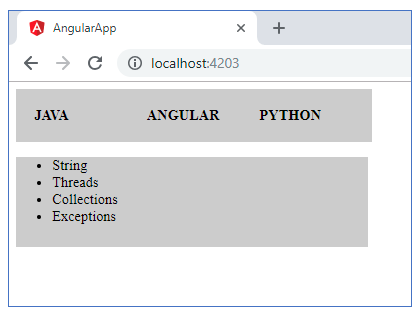
After these steps are performed, contents of java.component.html will be displayed on page load as shown below.
This is because for empty route or root URL, we have mapped JavaComponent.

If you want to change the contents of the page below the tabs when a link is clicked, you need to change the contents on the click event. For this purpose, routerLink directive is used.
Value of routerLink directive should match one of the routes configured in component class.
When the element is clicked, the value of its routerLink is matched with a route defined the current module and the corresponding component is loaded in place of router-outlet tag.

This directive is always applied at the element on which the user will click and you need to move to a different page or take some action on that click event and it is always applied in HTML template.
Thus, our HTML template will be modified as below

<div class="container">
   <div class="list">
      <span><a routerLink = "/">JAVA</a></span>
      <span><a routerLink = "angular">ANGULAR</a></span>
      <span><a routerLink = "python">PYTHON</a></span>
   </div>
   <div class="content">
       <!-- location where route component will be displayed -->
       <router-outlet></router-outlet>
   </div>
</div>

Note that the value of routerLink for the element with link JAVA is set to /. This is because for empty route we have chose to load JavaComponent in our routes array.
For non-angular applications, you might have seen href attribute with <a> tag to move to a different page. It can be used here also, but with href attribute the entire page will reload instead of the required portion of the page.
This way, the application will lose the entire essence of angular and its component based nature.

Hope this article helped you to understand the concept of routing in angular.
For a clear understanding, create an example as shown in this article on your own.

Exit mobile version